

You probably know this feeling: You have a brilliant idea for a new AI-powered feature in your app, but that excitement is tempered by a nagging worry about getting a runaway bill. This is why we’re incredibly excited to introduce spend caps for Firebase services, a much-requested feature designed to give you more financial control. Whether you’re a solo developer or a growing startup, we’re handing you the keys to the cloud with more peace of mind.
Spend caps are designed to act as a circuit breaker for services like the Gemini API and Cloud Functions, reducing the risk of a financial surprise from a simple coding error or an unexpected spike in traffic.
Powerful features for more control
Spend caps are granular and warn before they kick in. Here’s how they work:
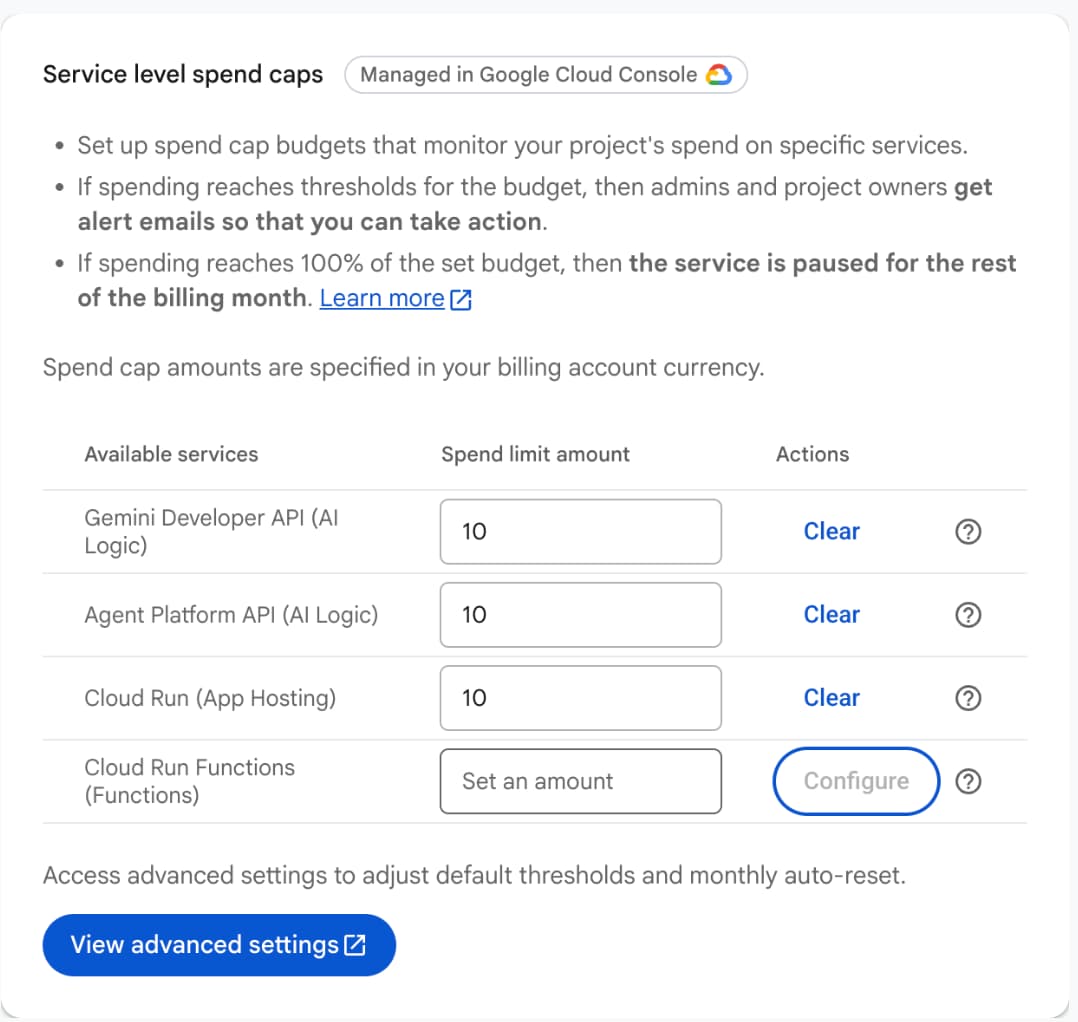
- Service-level spend caps: You can set specific caps for individual services starting with Firebase AI Logic, Cloud Functions for Firebase, and Firebase App Hosting. This allows you to limit costs on specific services without shutting down your entire project.
- Multi-stage notifications: Stay informed with automated email alerts triggered at 50%, 80%, and 100% of your spend cap budget.
- Service pausing: Unlike standard budget alerts that just send an email, spend caps actually pause the service after 100% of your spend cap budget is reached.
- Centralized management: A new, dedicated “Accounts & budgets” section in the Firebase console provides a single, holistic view to manage spend caps across the eligible Firebase services.
- Flexible experience: In the Firebase console, we’ve streamlined setting up budgets specific to eligible Firebase services. And in the Google Cloud console, you can access a more advanced interface for managing budgets with more configuration options.
How to manage your spend caps
Take the following actions to set up a spend cap:
- Navigate to your project in the Firebase console.
- Go to your Usage and Billing settings, then the Account & budgets tab.
- Set budget alerts and spend caps.
- Enter your desired spend limit amount for the service and save your changes.
From the Account & budgets tab, you can manage your active spend caps. For example:
- View your current spend cap amounts per service
- Configure spend caps
- Clear your existing spend cap amounts
- Link to the Cloud console to lift a spend cap to unpause a service
Important details to keep in mind
Spend caps are not “hard caps”. Due to latency in usage reporting, spend cap enforcement is not instantaneous and can be delayed by several minutes. Any cost overages incurred during this delay will be billed as normal. Consider setting your budget slightly below your absolute limit. Learn more about the limitations of spend cap budgets in the docs.
Here are some other important details to keep in mind when configuring your spend caps:
- Calculations for your limits are based on gross costs, using standard pricing before applying any credits, free tiers, or discounts.
- Lifting spend caps can be done from the Cloud console. You may want to turn a service back on if you decide the extra usage was intentional. Services might take up to one hour to fully resume after you lift the cap.
Try setting a spend cap today
We hope this feature gives you the confidence to build and scale your projects without worrying about unexpected costs. Open up your project in the Firebase console, explore your Usage and Billing settings, and set up a spend cap for eligible services.
Also, check out our documentation to learn more about spend caps and other ways to avoid surprise bills.
We rely on your feedback to improve, so please reach out on our community forums (like Firebase UserVoice) to share your experience using spend caps!