
A couple of months ago, I shared how I used Firebase AI Logic to build a hands-free, real-time cooking assistant for the Friendly Meals Android app. It was great for answering my cooking questions while I had my hands covered in flour, and for adding ingredients to my shopping list in a conversational style. But then something happened the other night as I was cooking dinner: I didn’t have most of the ingredients I needed for a recipe, and my shopping list was huge.
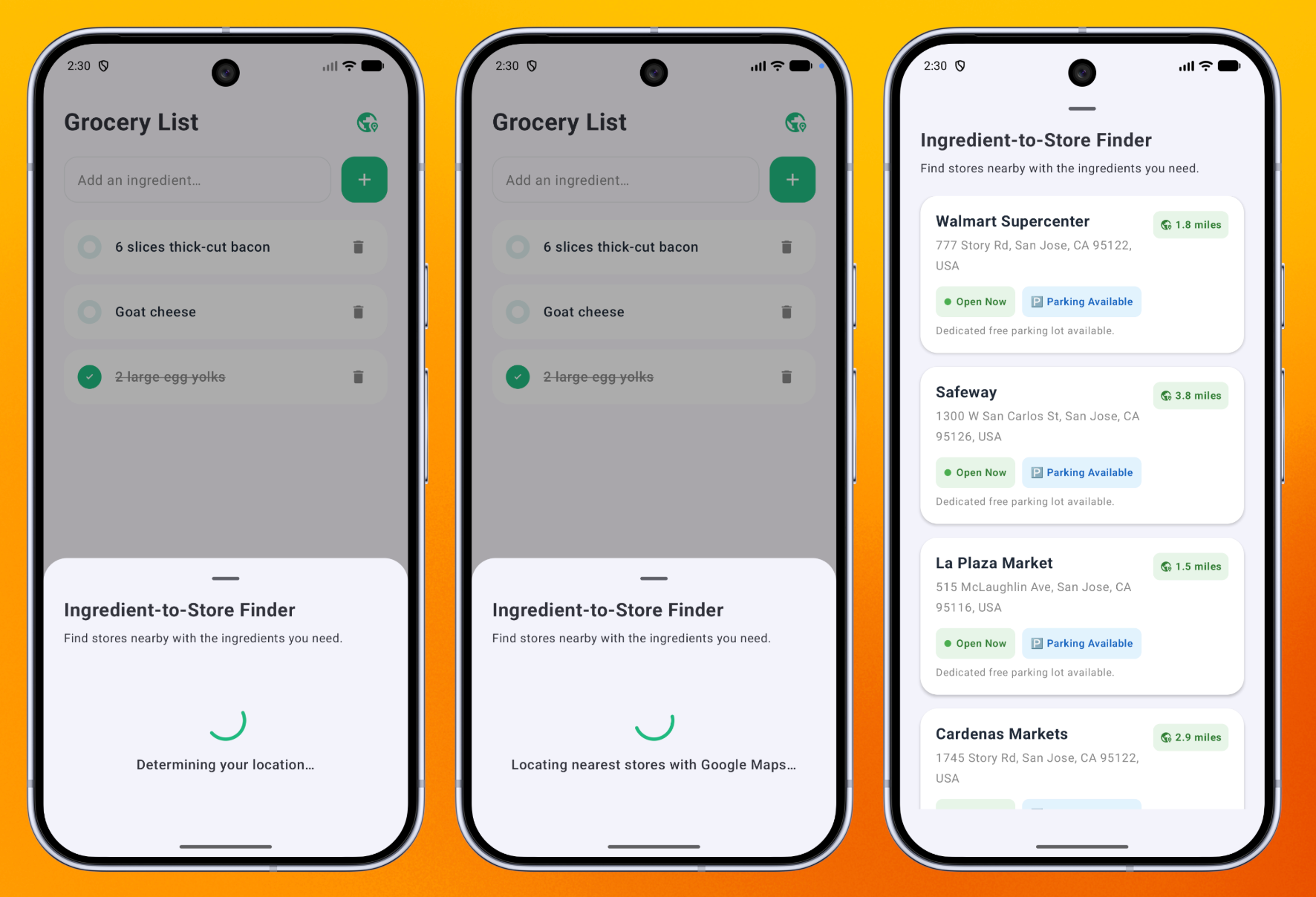
So I wondered: what if I could tap a button to find nearby stores with these ingredients? Checking closing times, distance, and parking inside the app is far more convenient than filtering through Google Maps manually. Read through to learn how I added spatial intelligence to Friendly Meals using Grounding with Google Maps via Firebase AI Logic.
The power of location-aware AI
Firebase AI Logic provides secure, client-side SDKs that let mobile and web apps talk directly to Google’s generative models without setting up complicated server-side architecture. With the addition of grounding with Google Maps, you can now link Gemini’s intelligence directly to Google’s massive database of over 250 million real-world places.
By grounding Gemini’s responses with Google Maps data, the cooking assistant achieves two things:
- Real-time data access: Recommendations for stores, markets, or restaurants are anchored to actual, existing businesses. The model knows current operational statuses, business hours, and location specifics (like address and parking information).
- Geographic personalization: By biasing the request with the user’s current latitude and longitude, the assistant’s advice becomes highly localized, which is great when you want to display the results ordered by how near a store is to the user.
How Friendly Meals implements Maps grounding
Let’s dive into the code for the Friendly Meals Android app, written in Kotlin, and look at the key changes required to create the Store Finder feature.
Configuring the prompt template
Just like other features in this app, I want to keep the Store Finder feature flexible without forcing users to update the app when I want to try a new AI model, or a new prompt. I can achieve that by storing these pieces of information in a prompt template, in the Firebase console:
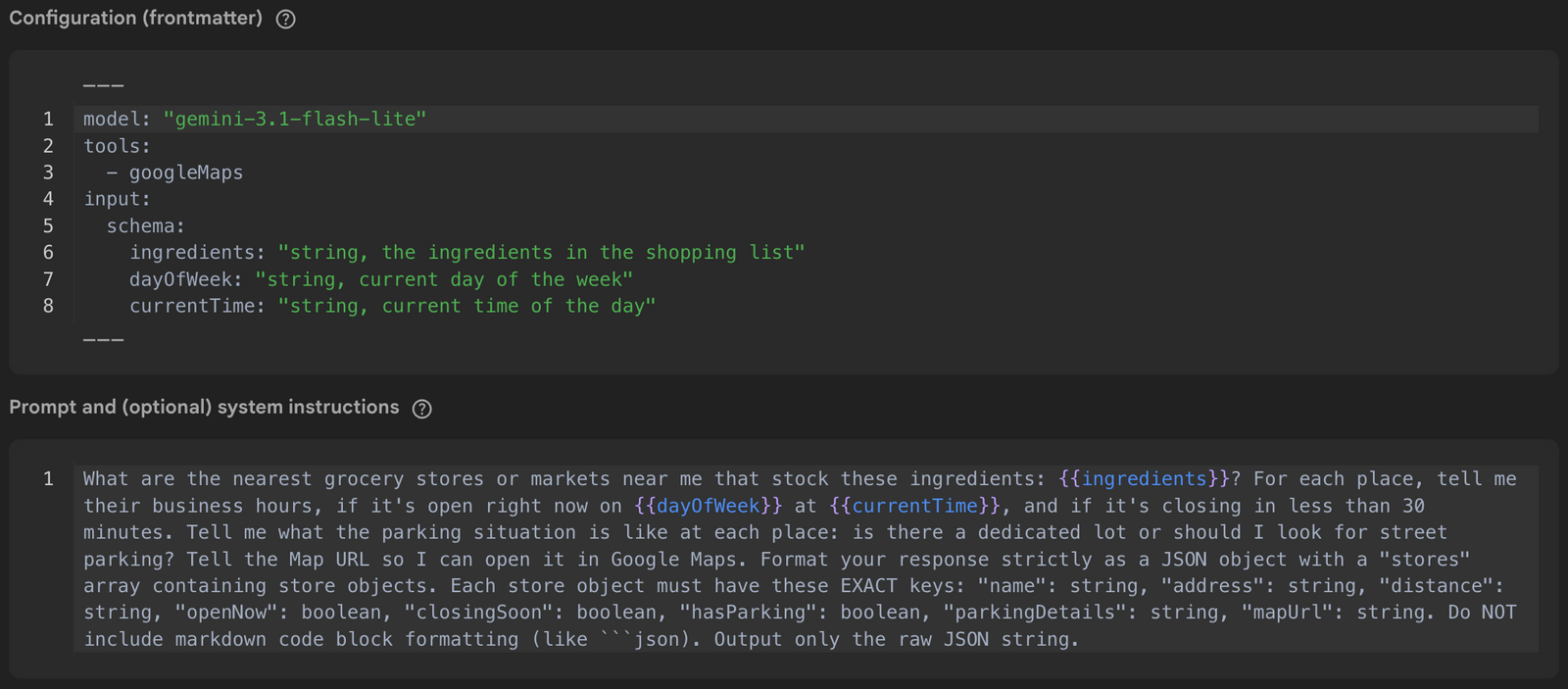
By using prompt templates, I’m storing my prompt, input schema, model configurations and tools server-side. This way, I’m not only able to update my prompt and configuration without releasing a new app version, but I’m also protecting my intellectual property by not exposing it client-side.
Using the prompt template on the client
To use the prompt template in my Android app, I only need to reference the template ID when making the API call, and pass in the parameters defined in the template configuration. The Firebase AI Logic API takes care of executing the call to the chosen Gemini model and returning the response to my app. This is done in the findStores function:
suspend fun findStores(
  ingredients: List<String>,
  latitude: Double,
  longitude: Double,
  currentTime: String,
  dayOfWeek: String
): List<StoreSchema> {
  // Initialize the AI model with the Google Maps tool
  val groundingModel = aiModel.templateGenerativeModel(
    tools = listOf(TemplateTool.googleMaps()),
    toolConfig = TemplateToolConfig(
      retrievalConfig = retrievalConfig {
        latLng = LatLng(latitude = latitude, longitude = longitude)
        languageCode = "en_US"
      }
    )
  )

  return try {
    // Call the generative model and get the response text
    val response = groundingModel.generateContent(
      templateId = remoteConfig.getString(FIND_STORES_KEY),
      inputs = mapOf(
        INGREDIENTS_FIELD to ingredients.joinToString(),
        DAY_FIELD to dayOfWeek,
        TIME_FIELD to currentTime
      )
    )

    val rawText = response.text ?: return emptyList()

    // Make sure the JSON is clean by replacing potential JSON headers
    val cleanJson = rawText
      .replace("```json", "")
      .replace("```", "")
      .trim()

    // Convert JSON object to an object of the type StoreFinderResult
    json.decodeFromString<StoreFinderResult>(cleanJson).stores
  } catch (e: Exception) {
    Log.e(TAG, "Error finding stores with these ingredients", e)
    emptyList()
  }
}

companion object {
  //Remote Config Keys
  private const val FIND_STORES_KEY = "find_stores"

  //Template input fields
  private const val INGREDIENTS_FIELD = "ingredients"
  private const val DAY_FIELD = "dayOfWeek"
  private const val TIME_FIELD = "currentTime"
}To give Gemini access to real-time maps data, I provide TemplateTool.googleMaps() to the model initialization blocks. That involves retrieving the user’s latitude and longitude, which enables the app to return a highly localized list of stores. I’ll dive into how you can extract latitude and longitude data on Android apps in the next section of this blog.
Once the model is initialized, I call the generateContent function passing in the template ID and the input parameters: the list of ingredients in the shopping list, retrieved from Firestore, and the current day and time, retrieved using the LocalDateTime Java library.
When I get a response from Gemini, I extract the text from this response (which should be in JSON format), and make sure the JSON is clean by replacing potential JSON headers. I then convert this “clean” JSON to an object that my codebase can understand: StoreFinderResult. This is the object that I use to populate the Compose UI that you saw at the beginning of this blog, which is built with a bottom sheet component.
Retrieving latitude and longitude data
To build location-aware Android apps that can extract latitude and longitude data, first I need to add the playServicesLocation dependency, then add some permissions to the AndroidManifest.xml file:
<uses-permission android:name="android.permission.ACCESS_FINE_LOCATION"/>
<uses-permission android:name="android.permission.ACCESS_COARSE_LOCATION"/>Then, when the user taps on the Store Finder button, I call the RequestMultiplePermissions function, which handles the flow of requesting the user to grant permissions if they haven’t done so yet. Once the permission is granted, I extract the current location with the getCurrentLocation function:
// This is the primary entry point in Google Play services for accessing device location on Android
val fusedLocationClient = remember {
  LocationServices.getFusedLocationProviderClient(context)
}

// Launcher to request multiple runtime permissions and handle the result
val permissionLauncher = rememberLauncherForActivityResult(
  contract = ActivityResultContracts.RequestMultiplePermissions()
) { permissions ->
  // Check permission results and default to false if not present
  val fineLocGranted = permissions[ACCESS_FINE_LOCATION] ?: false
  val coarseLocGranted = permissions[ACCESS_COARSE_LOCATION] ?: false

  // Fetch location if at least one permission level is granted
  if (fineLocGranted || coarseLocGranted) {
    coroutineScope.launch {
      val priority = Priority.PRIORITY_HIGH_ACCURACY
      val cancellationTokenSource = CancellationTokenSource()

      // Asynchronously request the most recent current location
      val location = fusedLocationClient
        .getCurrentLocation(priority, cancellationTokenSource.token)
        .await() // Suspends execution until the result is retrieved

      if (location != null) {
        // Triggers the call to the AI model to find stores
        onSuccess(location.latitude, location.longitude)
      } else {
        // Triggers UI message if location services are disabled
        showError()
      }
    }
  }
}

// Triggers the system permission dialog for both fine and coarse location
permissionLauncher.launch(
  arrayOf(ACCESS_FINE_LOCATION, ACCESS_COARSE_LOCATION)
)And that’s all you need to do to perform a successful call to Gemini, grounding its response in real-time data from Google Maps!
Going to production
As always, make sure you are protecting your apps with Firebase App Check before deploying them to production. App Check attests that incoming traffic originates from your untampered Android app on a legitimate device. It helps protect your backend from abuse, such as billing fraud, phishing, app impersonation, and data poisoning. Check out the App Check documentation to learn more about it.
Bring grounding with Maps to your apps
By pairing client-side code via Firebase AI Logic with the data depth of Google Maps, you evolve your AI features to interactive spatial flows that can guide users in the physical world.
Head over to the Friendly Meals GitHub repository to review the codebase in full. If you want to check specifically the changes introduced for this feature, check out this pull request.